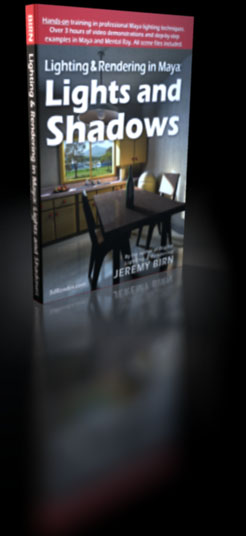

The new Maya training DVD from Jeremy Birn.
| Frames from the Maya Lighting & Rendering: Lights & Shadows DVD are shown as a Flash slide show. |

1. Intro: Previewing Lights, How to Choose Light Colors 12:09
Jeremy Birn introduces the lectures from a film studio surrounded by motion picture production equipment. The first demonstration begins in Maya with an overview of spotlight controls, and functions to preview lighting in real-time. Jeremy demonstrates practical approaches to choosing realistic colors for lights, based on color temperatures, background plates, and color schemes.
KEY WORDS: Maya Spot Lights, hardware preview of lights, High Quality Rendering, real-time shadows, Use Selected Lights, Use All Lights, Light Attribute Editor, Type, Color, realistic light colors, Kelvin Color Temperatures, color schemes, complementary colors.
2. Light Intensity and Digital Color 9:12
Shaping and defining forms in 3D models is the focus of choosing light intensities and angles. Jeremy demonstrates how to bring-out the three-dimensional form of a model by lighting to create gradients that communicate their shape. Jeremy demonstrates how color mixing works between lights and between colored lights and colored surfaces, including some results that many artists consider counter-intuitive.
KEY WORDS: Intensity, shaping and form, creating gradients in lighting, Camera Settings, Resolution Gate, frontal lighting, key lights, fill lights, relationship between intensity and color, intensity as multiplier, color mixing between lights, light color to shader color interaction, color cancellation.
3. Light Linking, Emit Diffuse, and Emit Specular 7:12
The Illuminates by Default option gives you a choice between two different approaches to light linking that are demonstrated and explained. Jeremy demonstrates Maya's IPR renderer, and explains uses for the Emit Diffuse and Emit Specular controls on lights.
KEY WORDS: Illuminates by Default, light linking, IPR, Interactive Photorealistic Renderer, Emit Specular, Emit Diffuse, Attribute Editor, Copy Tab.
4. Decay and Custom Curves 12:34
Jeremy reviews uses for Maya's 4 choices of Decay Rate. With a light meter, we can verify that Inverse Square or Quadratic decay is found in real studio lights. Jeremy explains why different settings are used to simulate direct sun. Intensity Curves allow you to design your own custom decay patterns, determining your own relationship between distance and intensity. Color Curves provide even more custom control over a light's decay, allowing different colors at different distances from the light.
KEY WORDS: Decay Rate, No Decay, Quadratic Decay, Inverse Square Rule, light meters, EV, simulating sunlight and distant light, out of range Intensity values, Linear Decay, Cubic Decay, Create Intensity Curve, Curve Editor, editing Keys in Anim Curve Attributes, creating Color Curves, Light Fog, Use Decay Regions.
5. Spotlight Looks and Throw Patterns 10:02
Options including Cone Angle, Penumbra Angle, Dropoff, Barn Doors, and Cookies are all demonstrated as tools to control the pattern cast by a spotlight, to simulate different kinds of light sources. One demonstration shows how to add fake caustic patterns and custom colored gradients to simulate illumination from a flashlight in Maya.
KEY WORDS: Cone Angle, Penumbra Angle, positive vs. negative penumbras, Dropoff, Barn Doors, cookies, Filter Offset, Place2dTexture, simulating a flashlight, throw patterns, procedural texture as cookie, Circular Ramp, caustic patterns.
6. Lighting a Room Set-by-Step Demo 12:08
The complete process, start to finish, is demonstrated in lighting a room. Main lights to simulate sunbeams and sky light through a window are added. Fill lights and bounce lights are carefully added and adjusted to complete a believable lighting set-up that renders quickly in Maya. Jeremy stresses techniques that give an artist control over each light, as well as tricks to edit many lights at once for overall changes.
KEY WORDS: Outliner window, Outliner Show options, Color Settings for Invisible models, Sunbeams, Sky Fill, Look Through Selected, Focal Length, Reflected Light, Bounce Lights, isolating lights, lighting corners, Attribute Spreadsheet.
7. Lighting an Orange Demo 13:12
Lighting an orange is a classic cinematography exercise, on or off the computer. Be sure to try this one yourself to get practice aiming and controlling Maya lights. This demonstration makes use of Key lights, Specular lights, Fill lights, Rims, Kicks, Fills, and Bounces, and shows how to aim and adjust each of them. Special issues to pay attention to are professionally naming your lights, testing your lights in isolation, and being able to exactly match a reference image with your lighting.
KEY WORDS: Key lights, naming lights, specular lights, slashes of light, aiming slashes, fill lights, rim lights, aiming & adjusting rim lights kick lights, kicks vs. rims, isolating lights, bounce lights, matching lighting from an image.
8. Raytraced Shadows 10:54
Of the two types of shadows, raytraced shadows are simpler and easier to use. Key controls of Light Radius, Shadow Rays, and Ray Depth Limit are thoroughly explained and demonstrated to create accurate sharp shadows and natural soft shadows. Soft raytraced shadows are used from multiple types of light sources, including spot lights and area lights.
KEY WORDS: Raytraced Shadows, Raytracing, reflections of shadows, Ray Depth Limit, sharp shadows, soft shadows, Light Radius, dithered shadows, noise in shadows, Shadow Rays, Area Lights.
9. Mental Ray Features 10:54
In addition to the raytraced shadow options from the previous lecture, rendering in Mental Ray gives you additional options, including the Mental Ray Area Light option for Maya spotlights. This section demonstrates the more precise sampling controls available for Mental Ray Area Lights. Mental Ray Shadow Shaders provide additional control over an object's shadows, and Mental Ray shaders feature Custom Linking from specific lights to the shaders. The lecture ends with an example of a time when raytraced shadows can be too slow to use.
KEY WORDS: Mental Ray light options, Mental Ray area light, fixing grainy shadows, high samples, low samples, high sample limit, Shadow Shader, Mib_shadow_transparency shader, Mental Ray Materials, mib_illum_phong, Light Linking to Mental Ray shaders, Custom Linking, selection masks, attribute spreadsheet, times when raytraced shadows can be too slow.
10. Depth Map Shadows 11:48
This chapter explores issues with Depth Mapped Shadows, from previewing them in real-time in Maya, to optimizing their coverage, viewing the maps from disk, and approaches to creating soft shadow maps.
KEY WORDS: real-time shadows, Depth Map Shadow Attributes, Resolution, Cone Angle and Resolution, Disk based Dmaps, Overwrite Existing Dmap(s), viewing shadow maps as images, shadow map memory use, soft dmap shadows, Filter Size, softer shadows through lower resolution, arrays of spotlights.
11. Fixing Shadow Artifacts 11:01
Those nasty grid patterns or stripes or banding that you sometimes see in depth map shadows are shadow artifacts. A related problem, light leaks, are the bright corners of rooms where exterior light leaks through to the interior, or other places where illumination appears even though it should be shadowed. This lecture discusses the parameters and techniques that can fix these problems.
KEY WORDS: shadow artifacts, adjusting Bias, shadow framing, Use Auto Focus, light leaking through corners, fixing light leaks, Filter Size and light leaks, geometry causing light leaks, blocker geometry, blockers and flags.
12. Looking Deeper into Shadows 11:50
This lecture looks at how different kinds of shadows appear in reflections and through transparency. Shadows of Maya Fur are a special case, with different options in Mental Ray and the Maya Software Renderer. Mental Ray provides special options for shadow maps, including Mental Ray Shadow Map Overrides and Detail Shadow Maps.
KEY WORDS: depth map shadows in reflections, depth map shadows of transparent objects, Ray Depth Limit, Shadow Attenuation, transparency support in shadow types, Maya Fur, raytraced fur shadows, depth map shadows in Mental Ray, Mental Ray Shadow Map overrides, Take Settings From Maya, Mental Ray Shadow Map Samples, Mental Ray Detail Shadow Map, Detail Shadow Maps for hair, Maya Fur Shading/Shadowing attributes, Fur Shading Type, Auto-Shading, Threshold, Intensity Multiplier.
13. Point Lights, Directional Lights, and Perspective 9:38
This lecture compares spot lights, point lights, and directional lights in terms of types of shadow perspective, shadow casting options, shadow map efficiency, and approaches to soft raytraced shadows.
KEY WORDS: Point Lights, Use Only Single Dmap, Use X+ Map, shadow perspective, perspective of a distant point light, Directional Lights, aiming a Directional Light, controlling shadow size, making shadows bigger, sunbeams.
14. Ambient Lights and Volume Lights 10:34
This lecture highlights ambient lights, which Jeremy doesn't like very much, and Volume Lights, a unique type of light in Maya which Jeremy loves. Sample uses are shown in creating custom gradients, shaping ambient illumination, and working with negative lights to suck the illumination out of regions of the scene.
KEY WORDS: Ambient Lights, Ambient Shade, terminator position, Volume Lights, Light Shape, Color Range, Emit Ambient, negative lights, light linking with negative lights, colors for negative lights, gloominosity.
15. Cheats & Tricks 15:30
This section details a number of handy techniques you can use in Maya, including creating shadows-only lights that cast shadows without adding illumination. Shadow objects are explored as a way to cheat your shadows, or to compensate for the lack of thickness in 2D elements within a scene. Shadow linking modes are covered, including how custom shadow links can be used. A work-around is shown to make-up for the lack of transparency support in depth map shadows. Uses for shadow color are shown, including alternatives to the cliché of using fake blue shadows for contrast.
KEY WORDS: creating shadows-only lights, shadow objects, shadows from flat planes trees, light linking, shadows obey light linking, shadows ignore linking, Shadows obey shadow linking, Make Shadow Links, Break Shadow Links, faking shadow transparency support with depth maps, Shadow Color, alternatives to shadow color.
16. Lighting the Kitchen Step-by-Step Demo 10:07
This 3-part demo walks you through lighting a complete 3D scene to produce professional-looking results. The first part of this lighting demonstration shows render settings for quick test rendering, the process of adding fill light from the sky, and adding a sunbeam. The scene is further enriched with bounce lights to the scene simulating reflected light, and polished the scene with selective rim lights and fill lights. Along the way, Jeremy stops to explain and demonstrate many of the choices and adjustments that need to be made, highlighting key settings and providing warnings about possible errors to watch out for.
KEY WORDS: Anti-Aliasing Quality, Min Sample Level, Max Sample Level, lighting a window, fill from sky, Light Radius, Shadow Rays, Emit Specular, bounce from ground through window, targeted fill lights, Light Radius causing light leaks.
17. Lighting the Kitchen Step-by-Step Part 2 11:00
KEY WORDS: sun beam, Light Angle for soft shadows from Directional Lights, bounce light from sunbeam, bounce lights, adding kicks and rims to highlight selected objects, aiming rim lights, approaches to create a translucent light bulb.
18. Lighting the Kitchen Step-by-Step Part 3 7:47
KEY WORDS: selective fill lights, soloing a light, comparing interior to exterior exposure, Ray Depth Limit demo in reflective room, moving to full quality anti-aliasing and raytracing, computationally expensive settings in the scene, invitation to lighting challenge scenes.
Continue to Description and Ordering Page...
Copyright © 2008 by Jeremy Birn.