
| Page 30 | Modeling a Mountain Bike: The Spokes |
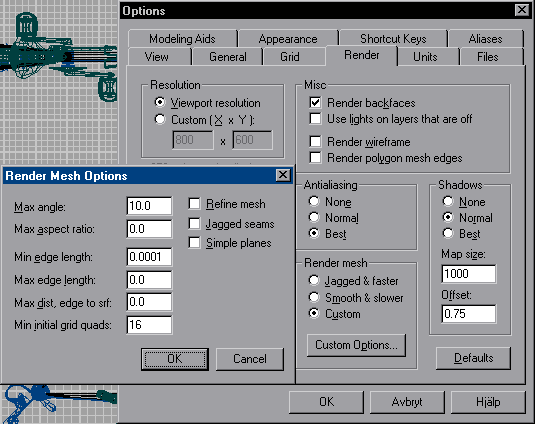
Be sure to save your work. Your current state in the modeling progress should look like the sample file ‘Bike3.3dm’ from the CD-ROM (turn on all of the layers containing surfaces.) Also, before rendering all of these surfaces at once you should go ‘Render/Options’, and choose ‘Custom’ in the ‘Render mesh’ area.

Use the settings shown below, which gives a pretty low polygon amount while having a decent smoothness. When doing renders with only a small number of objects, the preset ‘Jagged & faster’ works fine.
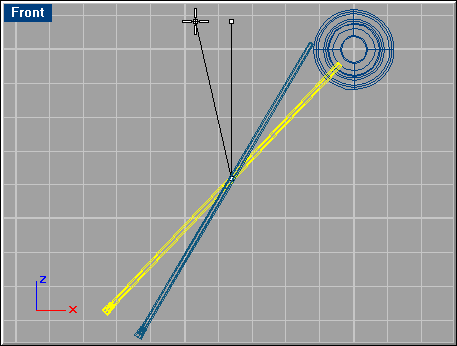
Have the ‘Details-2’ layer visible and the others hidden. Select the two objects (the spokes) along with the third surface seen below, then go ‘Edit/Select/Invert’. Hide the selected objects (‘Edit/Visibility/Hide’).

Rotate the spoke objects 13 degrees (type C + Enter for copy, and 13 + Enter for the angle) as shown below.
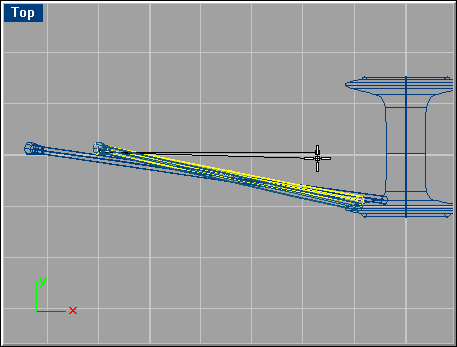
In the Top viewport, rotate the spoke objects selected below by -1.5 degrees.
Make the ‘Details-1’ layer visible so you can move the rotated spoke objects to a position similar to the first spoke in relation to the wheel (below). Then hide the layer again.

Select the four spoke objects and go ‘Transform/Array/Polar’ and while using the Object Snap ‘Cen’, make the pointer snap to the center of the surface shown below.
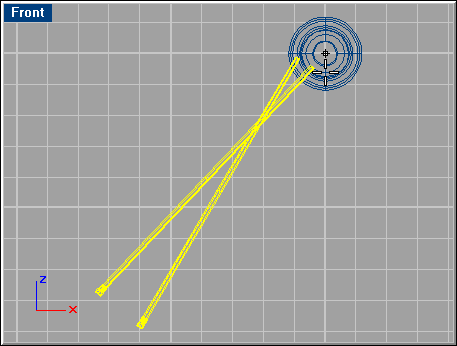
Set the number of spokes to 9, and because the default degree is 360, just hit Enter.
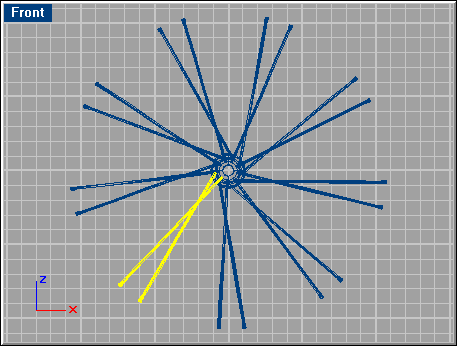
In the Top viewport, select all of the spoke objects and mirror them using Object Snap ‘Cen’.
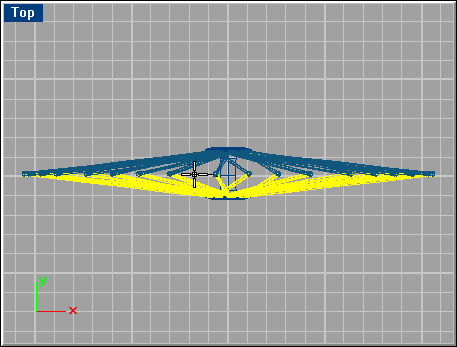
In the Front viewport, rotate the curves already selected -20 degrees.

Select all of the spoke objects, have the hidden objects shown again, and snap the copied spokes to the surface shown below.
