| Page 10 | Modeling a Brachiosaurus: Building Legs |
Make a new layer called ’Head surface,’ put everything visible in the scene into that layer, and set it to ’Off’. In the Right viewport, use ’ShowBackgroundBitmap’ to display the background.
Start outlining the legs with two curves, one on each side:

The upper part of the legs will be blended surfaces, therefore there is no need to outline those areas. As always, try to make the curves as detailed as possible, but with a small number of CV’s.
The legs will later on be capped, so the bottoms of the feet need to be planar. To achieve this, set Object Snap to ’Point’, select the lowest CV on either curve, snap it to the other curve’s lowest CV, then move it back to it’s place while holding Shift so it moves perfectly straight in the same horizontal height.
In the Top viewport, draw a closed curve for each leg as shown below. Make sure they lie on top of the curves from a side view. (Your current scene should be similar to the sample file 'brachio7.3dm' from the CD-ROM)
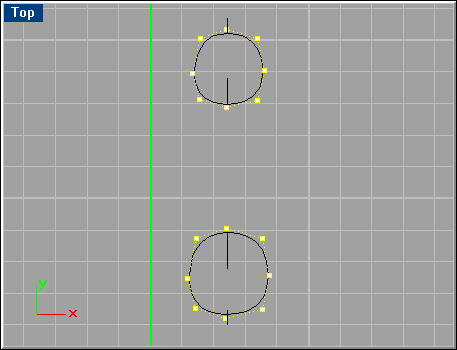
Select all curves on the back leg, and use the ’Sweep2’ command. Use the settings shown here:
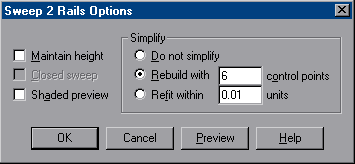
Do the same for the front leg.
Select all curves (’SelCrv’ command), and use 'change layer' to move them into the ’Original curves’ layer.
The back leg is pretty thin at the foot and thick at the top, so it may be a good idea to make the top a bit thicker, by selecting the upper half rows of CV’s, and scaling them (Scale1D) inwards in the Front viewport. Give the front leg a bit more lean, and if needed, move around with the CV’s in any areas where it is necessary.
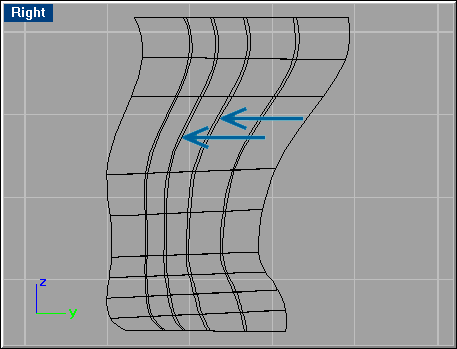
Insert isoparms as shown below (Direction=U, Symmetrical=Yes) and start stretching CV’s inwards and outwards in those new rows to make the splint muscle. Use the same technique for the front leg.