| Page 11 | Modeling a Brachiosaurus: Attaching The Legs |
Now you will put all surfaces together. In the ’Edit Layers’ panel, set the ’Body surface’ layer to On.
Move the legs just a bit farther out from the body. Select the body surface, use the Object Snap ’Near’, and mirror it to the opposite side.
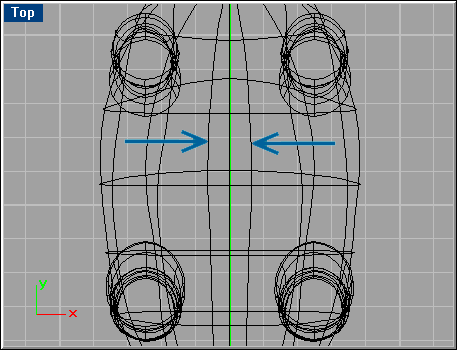
Select both body surfaces and use the ’MergeSrf’ command. Then use ’RebuildSrf’ (point count of 20 in U direction and 10 in V direction) to rebuild the surface to remove any potential creases.
Now there could be some areas that you might need to tweak, since you can now see how the whole surface looks. For example, the tail could be too elliptical.
In the Front viewport, stretch some CV’s to achieve a more circular look. The stomach area needs to be rounder and wider. CV’s in that area should be stretched outwards. If there are other areas that need to be fine tuned, make the changes now.
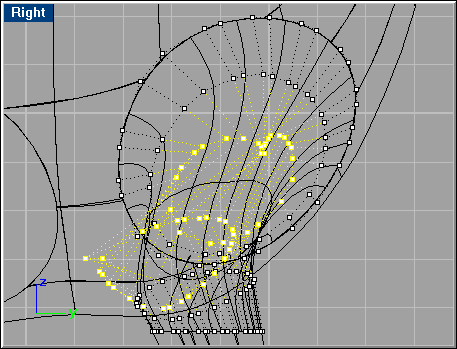
In order to make the spine appear, insert isoparms as shown here:
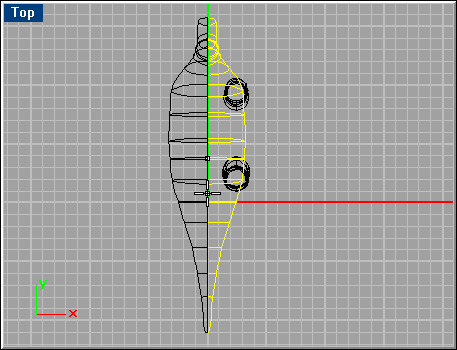
Move the center CV row up a bit to get the peak. Select the CV’s running up the back of the neck, and drag them out also, to make the peak extend up the neck as well. This figure shows the CV’s after being moved:
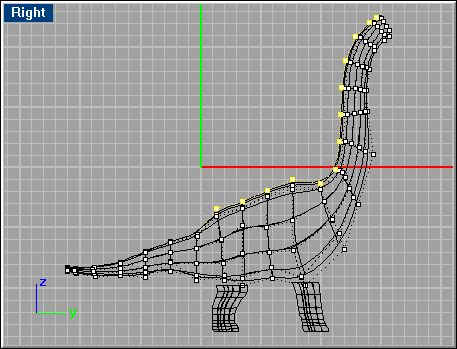
You might need to smooth some CV’s out with the ’Smooth’ command. (At this state your scene should be similar to the sample file ’brachio8.3dm’ from the CD-ROM.)
To seamlessly attach the legs to the body, you need to blend them. Blending is a hard task ,and requires some tweaking to get the result that you want. The tweak can be as simple as moving one of the objects a bit in order to make the blended surface look better.
Make two spheres with the size and position shown here:
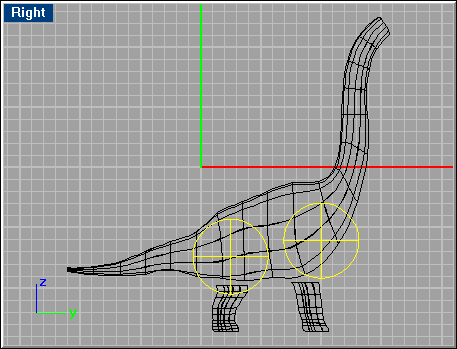
They should be about half a unit from the center of the body (seen from Top or Front viewport). Then mirror these to the other side of the body (use Object Snap ’Near’ here as well). To split the body with the spheres with the command ’Split’, select the body surface first, and then the spheres.
Move the spheres to a new layer named ’Spheres,’ turn this layer off, and delete the surfaces that were split from the body surface.
Now, use the ’BlendSrf’ command, and for the first ’Edge to blend’, select right back leg’s opening, and for the 2nd, select the back legs top edge. Hit A for automatic. Sometimes automatic doesn’t work, then you have to move the arrows manually. Make sure the arrows point at the same direction, and that the arrows are either as far out as possible from the body surface, or as close to center. Otherwise the blend gets twisted. This figure shows how it could look for a successive blending:
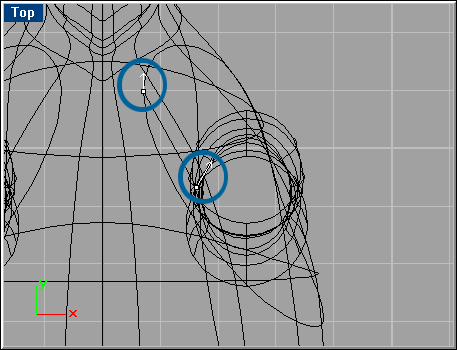
Do the same for the front leg.
(Your scene should now be similar to the sample file ’brachio9.3dm’ from the CD-ROM).