
1. In Rhinoceros open up the transform toolbar and drag
it into the Rhinoceros workspace.
2. Hold the control key down on your keyboard and left
mouse click over the Rotate Icon.
3. Ok to duplicate box pops up click Ok.

4. Shift key right mouse click over one of the duplicated
Rotate icons
5. In the Left button command enter...
! Rotate c
In the Right button command enter...
! Rotate3d c
Change the Tooltip to read ...
Rotate copy | Rotate 3d copy, click Ok.
6. Change the color of the icon if you wish to make the
new custom icon easier to identify.

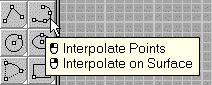
7. Click the ! InterpCrv icon
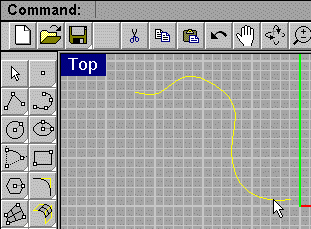
8. In the Top Viewport create a curve similar to left
hand figure .
Pre-select the curve by left mouse clicking on it.
The curve should be highlighted in yellow.
*Remember* you need to select the curve first for these commandscripts
to work.
9. Left mouse click the Rotate Copy icon you created
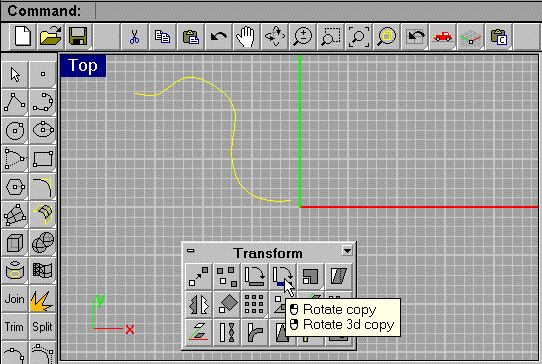
10. Click in the topViewport near the center of
the Viewport.
11. Holding the shift key down to activate ortho click
to the left of the last point.
Notice that now you can rotate and copy the curve at the same
time. Make some copies.
12. Select all and delete the contents leaving the
drawing free of objects for the next mini tutorial.
